<!DOCTYPE html>
	<html lang="vi" xmlns="http://www.w3.org/1999/xhtml" prefix="og: http://ogp.me/ns#">
	<head>
<title>Hướng dẫn tạo báo động mỗi khi mất kết nối Internet trên Windows 10</title>
<meta name="description" content="Hướng dẫn tạo báo động mỗi khi mất kết nối Internet trên Windows 10 - Savefile - Tin Tức -...">
<meta name="author" content="TẤT THÀNH COMPUTER - MÁY TÍNH - HIEND COMPUTER - GAMING GEAR - LẶP ĐẶT CAMERA - MÁY TÍNH KIẾN ĐỨC LÂM ĐỒNG - PC ĐĂK NÔNG -SỮA MÁY TÍNH">
<meta name="copyright" content="TẤT THÀNH COMPUTER - MÁY TÍNH - HIEND COMPUTER - GAMING GEAR - LẶP ĐẶT CAMERA - MÁY TÍNH KIẾN ĐỨC LÂM ĐỒNG - PC ĐĂK NÔNG -SỮA MÁY TÍNH &#91;tatthanhcomputer@gmail.com&#93;">
<meta name="robots" content="index, archive, follow, noodp">
<meta name="googlebot" content="index,archive,follow,noodp">
<meta name="msnbot" content="all,index,follow">
<meta name="google-site-verification" content="trv-gicI9Ys7h7Bl_YyzKYMniz7AXwEXyiPmcUUlt74">
<meta name="generator" content="NukeViet v4.0">
<meta name="viewport" content="width=device-width, initial-scale=1">
<meta http-equiv="Content-Type" content="text/html; charset=utf-8">
<meta property="fb:pages" content="907932985902238">
<meta property="og:title" content="Hướng dẫn tạo báo động mỗi khi mất kết nối Internet trên Windows 10">
<meta property="og:type" content="website">
<meta property="og:description" content="Savefile - Tin Tức - https&#x3A;&#x002F;&#x002F;tatthanhcomputer.com&#x002F;news&#x002F;savefile&#x002F;thu-thuat&#x002F;huong-dan-tao-bao-dong-moi-khi-mat-ket-noi-internet-tren-windows-10-51.html">
<meta property="og:site_name" content="TẤT THÀNH COMPUTER - MÁY TÍNH - HIEND COMPUTER - GAMING GEAR - LẶP ĐẶT CAMERA - MÁY TÍNH KIẾN ĐỨC LÂM ĐỒNG - PC ĐĂK NÔNG -SỮA MÁY TÍNH">
<meta property="og:url" content="https://tatthanhcomputer.com/news/thu-thuat/huong-dan-tao-bao-dong-moi-khi-mat-ket-noi-internet-tren-windows-10-51.html">
<link rel="shortcut icon" href="https://tatthanhcomputer.com/favicon.ico">
<link rel="canonical" href="https://tatthanhcomputer.com/news/thu-thuat/huong-dan-tao-bao-dong-moi-khi-mat-ket-noi-internet-tren-windows-10-51.html">
<link rel="alternate" href="https://tatthanhcomputer.com/news/rss/" title="Tin Tức" type="application/rss+xml">
<link rel="alternate" href="https://tatthanhcomputer.com/news/rss/cong-nghe/" title="Tin Tức - Công Nghệ" type="application/rss+xml">
<link rel="alternate" href="https://tatthanhcomputer.com/news/rss/games/" title="Tin Tức - GAMES" type="application/rss+xml">
<link rel="alternate" href="https://tatthanhcomputer.com/news/rss/thu-thuat/" title="Tin Tức - Thủ Thuật" type="application/rss+xml">
<link rel="alternate" href="https://tatthanhcomputer.com/news/rss/Doi-tac/" title="Tin Tức - Đối tác" type="application/rss+xml">
<link rel="alternate" href="https://tatthanhcomputer.com/news/rss/tin-cong-ty/" title="Tin Tức - Tin Công Ty" type="application/rss+xml">
<link rel="alternate" href="https://tatthanhcomputer.com/news/rss/Tuyen-dung/" title="Tin Tức - Tuyển dụng" type="application/rss+xml">
<link rel="preload" as="script" href="https://tatthanhcomputer.com/assets/js/jquery/jquery.min.js">
<link rel="preload" as="script" href="https://tatthanhcomputer.com/assets/js/language/vi.js">
<link rel="preload" as="script" href="https://tatthanhcomputer.com/assets/js/global.js">
<link rel="preload" as="script" href="https://tatthanhcomputer.com/themes/memory/js/news.js">
<link rel="preload" as="script" href="https://tatthanhcomputer.com/themes/memory/js/main.js">
<link rel="preload" as="script" href="https://tatthanhcomputer.com/themes/memory/js/jquery-migrate-3.0.1.js">
<link rel="preload" as="script" href="https://tatthanhcomputer.com/themes/memory/js/double_tab_togo.js">
<link rel="preload" as="script" href="https://tatthanhcomputer.com/themes/memory/js/owl.carousel.min.js">
<link rel="preload" as="script" href="https://tatthanhcomputer.com/themes/memory/js/appear.js">
<link rel="preload" as="script" href="https://tatthanhcomputer.com/themes/memory/js/script.js">
<link rel="preload" as="script" href="https://tatthanhcomputer.com/themes/memory/js/bootstrap.min.js">
<link rel="StyleSheet" href="https://tatthanhcomputer.com/assets/css/font-awesome.min.css">
<link rel="StyleSheet" href="https://tatthanhcomputer.com/themes/memory/css/bootstrap.min.css">
<link rel="StyleSheet" href="https://tatthanhcomputer.com/themes/memory/css/style.css">
<link rel="StyleSheet" href="https://tatthanhcomputer.com/themes/memory/css/themes.css">
<link rel="StyleSheet" href="https://tatthanhcomputer.com/themes/memory/css/style.responsive.css">
<link rel="StyleSheet" href="https://tatthanhcomputer.com/themes/memory/css/news.css">
<link href="https://fonts.googleapis.com/css?family=Roboto:300,400,500,700&amp;subset=vietnamese" rel="stylesheet">
<link href="https://fonts.googleapis.com/css?family=Oswald:400,500,700&amp;subset=vietnamese" rel="stylesheet">
<style>
	body{background: #fff;}
</style>
<script data-show="inline">(function(i,s,o,g,r,a,m){i['GoogleAnalyticsObject']=r;i[r]=i[r]||function(){
(i[r].q=i[r].q||[]).push(arguments)},i[r].l=1*new Date();a=s.createElement(o),
m=s.getElementsByTagName(o)[0];a.async=1;a.src=g;m.parentNode.insertBefore(a,m)
})(window,document,'script','https://www.google-analytics.com/analytics.js','ga');
ga('create', 'UA-96594740-1', '.tatthanhcomputer.com');
ga('send', 'pageview');
</script>
</head>
	<body>
<div id="print">
	<div id="hd_print">
		<h2 class="pull-left">TẤT THÀNH COMPUTER - MÁY TÍNH - HIEND COMPUTER - GAMING GEAR - LẶP ĐẶT CAMERA - MÁY TÍNH KIẾN ĐỨC LÂM ĐỒNG - PC ĐĂK NÔNG -SỮA MÁY TÍNH</h2>
		<p class="pull-right"><a title="TẤT THÀNH COMPUTER - MÁY TÍNH - HIEND COMPUTER - GAMING GEAR - LẶP ĐẶT CAMERA - MÁY TÍNH KIẾN ĐỨC LÂM ĐỒNG - PC ĐĂK NÔNG -SỮA MÁY TÍNH" href="https://tatthanhcomputer.com/">https://tatthanhcomputer.com</a></p>
	</div>
	<div class="clear"></div>
	<hr />
	<div id="content">
		<h1>Hướng dẫn tạo báo động mỗi khi mất kết nối Internet trên Windows 10</h1>
		<ul class="list-inline">
			<li>Thứ tư - 10/03/2021 22:58</li>
			<li class="hidden-print txtrequired"><em class="fa fa-print">&nbsp;</em><a title="In ra" href="javascript:;" onclick="window.print()">In ra</a></li>
			<li class="hidden-print txtrequired"><em class="fa fa-power-off">&nbsp;</em><a title="Đóng cửa sổ này" href="javascript:;" onclick="window.close()">Đóng cửa sổ này</a></li>
		</ul>
		<div class="clear"></div>
		<div id="hometext">
			Thông thường, để biết được máy tính có đang được kết nối mạng hay không, các bạn sẽ phải nhìn xuống biểu tượng wifi hoặc ethernet ở góc phải bên dưới của thanh Taskbar. Tuy nhiên, không phải ai cũng có thể rảnh rỗi lúc nào cũng dán mắt nhìn vào biểu tượng này để theo dõi trạng thái kết nối mạng cả, đặc biệt là những bạn nào đang chơi game, coi phim phim toàn màn hình, hay tập trung gõ văn bản như mình. Những lúc như thế thường sẽ phải mất một lúc sau bạn mới phát hiện ra.
		</div>
				<div class="imghome">
			<img alt="Hướng dẫn tạo báo động mỗi khi mất kết nối Internet trên Windows 10" src="https://tatthanhcomputer.com/uploads/news/2021_03/123-15-1068x601.jpg" width="460" class="img-thumbnail" />
		</div>
		<div class="clear"></div>
		<div id="bodytext" class="clearfix">
			<p>Để giúp các bạn không cần phải dán mắt hay liếc mắt thường xuyên để theo dõi trạng thái kết nối wifi hay ethernet, mình sẽ hướng dẫn các bạn cách tạo âm báo mỗi khi máy tính mất kết nối mạng.</p>

<p>Bước 1: Đầu tiên, bạn cần tải một ứng dụng miễn phí có tên là&nbsp;<strong>GNU utilities for win32</strong>&nbsp;<a href="https://sourceforge.net/projects/unxutils/">tại đây</a>. Sau đó chọn&nbsp;<strong>Download</strong>&nbsp;để tải về.</p>

<figure>
<div style="text-align:center"><img alt="rtgy" height="348" sizes="(max-width: 1001px) 100vw, 1001px" src="https://tatthanhcomputer.com/uploads/news/2021_03/111-20.jpg" srcset="https://news.gearvn.com/wp-content/uploads/2020/08/111-20.jpg 1001w, https://news.gearvn.com/wp-content/uploads/2020/08/111-20-300x104.jpg 300w, https://news.gearvn.com/wp-content/uploads/2020/08/111-20-768x267.jpg 768w, https://news.gearvn.com/wp-content/uploads/2020/08/111-20-696x242.jpg 696w" width="1001" /></div>
</figure>

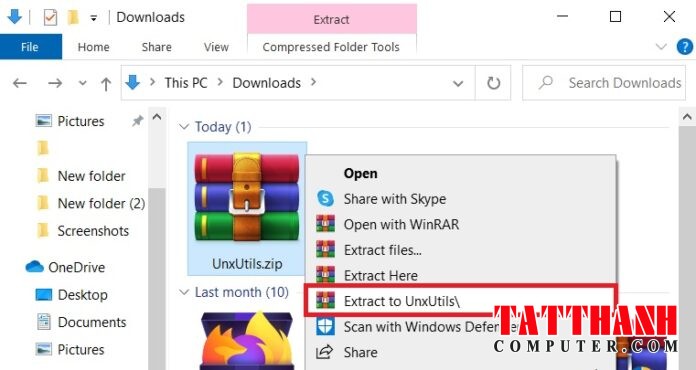
<p>Bước 2: Sau khi tải về xong, bạn giải nén file<strong>&nbsp;UnxUtils.zip</strong>&nbsp;bằng cách click chuột phải rồi chọn&nbsp;<strong>Extract to UnxUtils\</strong>.</p>

<figure>
<div style="text-align:center"><img alt="dsfdf" height="370" sizes="(max-width: 761px) 100vw, 761px" src="https://tatthanhcomputer.com/uploads/news/2021_03/222-21-696x370.jpg" srcset="https://news.gearvn.com/wp-content/uploads/2020/08/222-21.jpg 761w, https://news.gearvn.com/wp-content/uploads/2020/08/222-21-300x160.jpg 300w, https://news.gearvn.com/wp-content/uploads/2020/08/222-21-696x370.jpg 696w" width="696" /></div>
</figure>

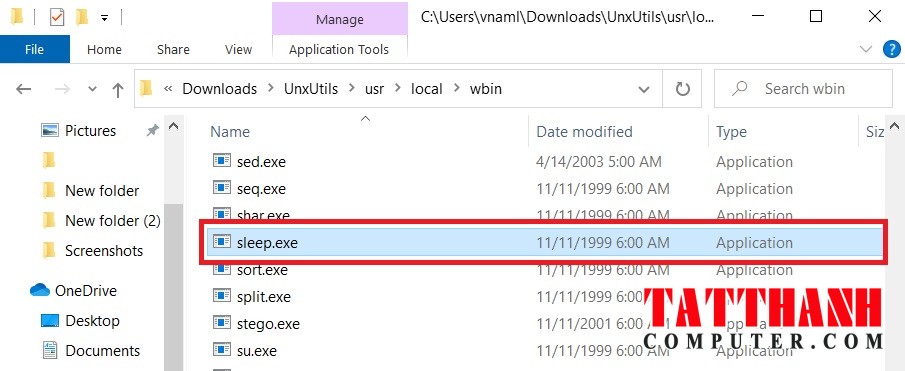
<p>Bước 3: Mở thư mục vừa được giải nén ra rồi mở lần lượt theo thứ tự sau:&nbsp;<strong>UnxUtils &gt; usr &gt; local &gt; wbin</strong>.</p>

<figure><img alt="" src="https://lh6.googleusercontent.com/1hl2Z7y3SChd0rS8tqY1Im6dfBtlN1-_ND6QP9u8J82xhCLJWjWN91v6I_34YoOT5dMUkB571yhlsIfm9WlbQhL1sjTs3rBQwwVOdefQLExt0sX9zAKq_WIcre3KMivr4fUBInlM" /></figure>

<p>Bước 4: Tại đây, tìm file&nbsp;<strong>sleep.exe</strong>&nbsp;rồi click chuột phải chọn&nbsp;<strong>Cut</strong>&nbsp;(hoặc bấm Ctrl + X).</p>

<figure>
<div style="text-align:center"><img alt="sdsd" height="371" sizes="(max-width: 905px) 100vw, 905px" src="https://tatthanhcomputer.com/uploads/news/2021_03/333-19.jpg" srcset="https://news.gearvn.com/wp-content/uploads/2020/08/333-19.jpg 905w, https://news.gearvn.com/wp-content/uploads/2020/08/333-19-300x123.jpg 300w, https://news.gearvn.com/wp-content/uploads/2020/08/333-19-768x315.jpg 768w, https://news.gearvn.com/wp-content/uploads/2020/08/333-19-696x285.jpg 696w" width="905" /></div>
</figure>

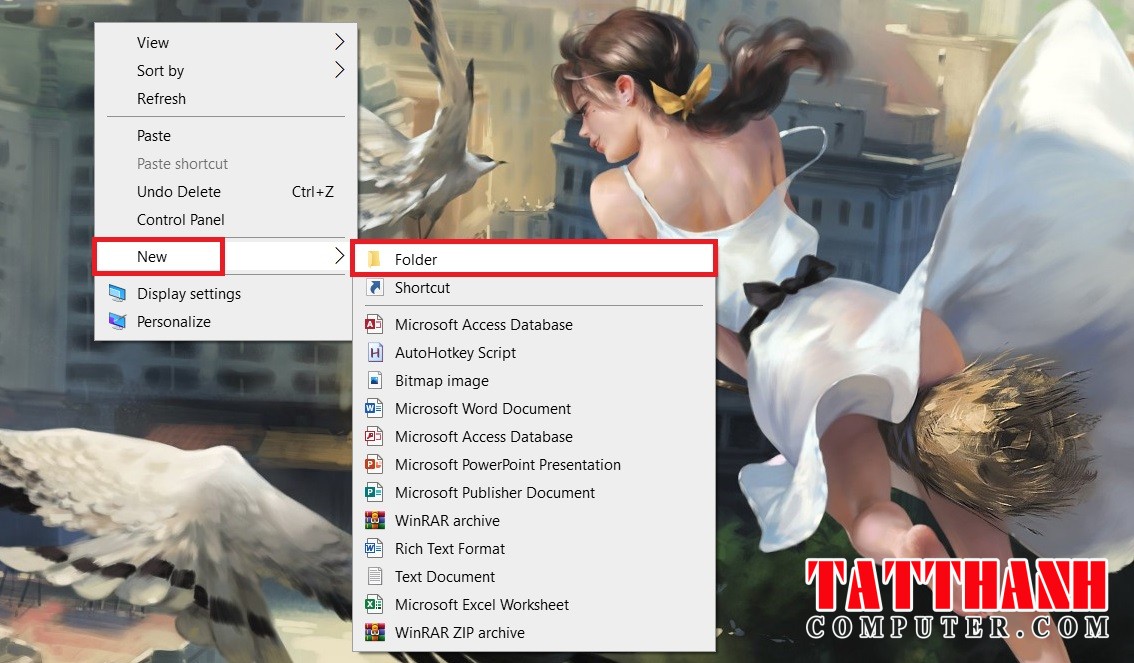
<p>Bước 5: Click chuột phải vào&nbsp;<strong>desktop</strong>, chọn&nbsp;<strong>New</strong>&nbsp;rồi chọn&nbsp;<strong>Folder</strong>&nbsp;để tạo một thư mục.</p>

<figure>
<div style="text-align:center"><img alt="dfdf" height="663" sizes="(max-width: 1134px) 100vw, 1134px" src="https://tatthanhcomputer.com/uploads/news/2021_03/444-16.jpg" srcset="https://news.gearvn.com/wp-content/uploads/2020/08/444-16.jpg 1134w, https://news.gearvn.com/wp-content/uploads/2020/08/444-16-300x175.jpg 300w, https://news.gearvn.com/wp-content/uploads/2020/08/444-16-1024x599.jpg 1024w, https://news.gearvn.com/wp-content/uploads/2020/08/444-16-768x449.jpg 768w, https://news.gearvn.com/wp-content/uploads/2020/08/444-16-696x407.jpg 696w, https://news.gearvn.com/wp-content/uploads/2020/08/444-16-1068x624.jpg 1068w, https://news.gearvn.com/wp-content/uploads/2020/08/444-16-718x420.jpg 718w" width="1134" /></div>
</figure>

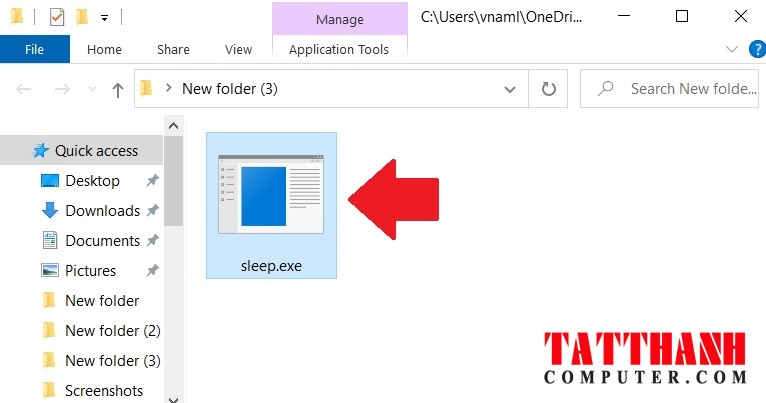
<p>Bước 6: Sau đó paste file&nbsp;<strong>sleep.exe&nbsp;</strong>mà bạn Cut ở bước 4 vào thư mục bạn mới tạo này.</p>

<figure>
<div style="text-align:center"><img alt="dff" height="403" sizes="(max-width: 766px) 100vw, 766px" src="https://tatthanhcomputer.com/uploads/news/2021_03/555-13.jpg" srcset="https://news.gearvn.com/wp-content/uploads/2020/08/555-13.jpg 766w, https://news.gearvn.com/wp-content/uploads/2020/08/555-13-300x158.jpg 300w, https://news.gearvn.com/wp-content/uploads/2020/08/555-13-696x366.jpg 696w" width="766" /></div>
</figure>

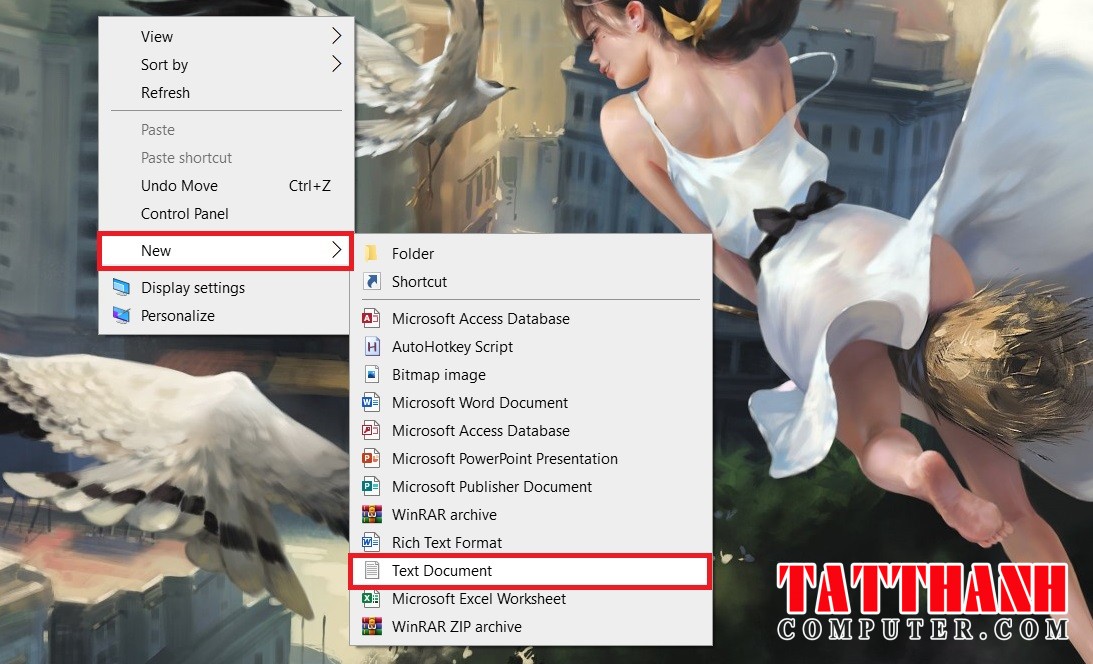
<p>Bước 7: Click chuột phải vào&nbsp;<strong>desktop</strong>, chọn&nbsp;<strong>New</strong>&nbsp;rồi chọn&nbsp;<strong>Text Document</strong>&nbsp;để tạo một&nbsp;<strong>Notepad</strong>.</p>

<figure>
<div style="text-align:center"><img alt="ghgh" height="664" sizes="(max-width: 1093px) 100vw, 1093px" src="https://tatthanhcomputer.com/uploads/news/2021_03/666-13.jpg" srcset="https://news.gearvn.com/wp-content/uploads/2020/08/666-13.jpg 1093w, https://news.gearvn.com/wp-content/uploads/2020/08/666-13-300x182.jpg 300w, https://news.gearvn.com/wp-content/uploads/2020/08/666-13-1024x622.jpg 1024w, https://news.gearvn.com/wp-content/uploads/2020/08/666-13-768x467.jpg 768w, https://news.gearvn.com/wp-content/uploads/2020/08/666-13-696x423.jpg 696w, https://news.gearvn.com/wp-content/uploads/2020/08/666-13-1068x649.jpg 1068w, https://news.gearvn.com/wp-content/uploads/2020/08/666-13-691x420.jpg 691w" width="1093" /></div>
</figure>

<p>Bước 8: Copy và paste đoạn code sau đây vào&nbsp;<strong>Notepad</strong>.</p>

<pre>
@ECHO OFF
:whileNoInternet
set &quot;host=8.8.8.8&quot;
::check if internet is working
PING -n 1 -w 5000 &quot;%host%&quot; | findstr /r /c:&quot;&#91;0-9&#93; *ms&quot;
if %errorlevel% neq 0 (
::the internet is not working keep cheking until it does
echo No internet yet %TIME%
GOTO whileNoInternet
)
echo we gained internet
::the internet is working play internet ON song
@echo off
set &quot;file=InternetON_GOGOGO.mp3&quot;
( echo Set Sound = CreateObject(&quot;WMPlayer.OCX.7&quot;^)
echo Sound.URL = &quot;%file%&quot;
echo Sound.Controls.play
echo do while Sound.currentmedia.duration = 0
echo wscript.sleep 100
echo loop
echo wscript.sleep (int(Sound.currentmedia.duration^)+1^)*1000) &gt;sound.vbs
start /min sound.vbs
@ECHO OFF
:whileInternet
sleep.exe 5s
::check if internet is still working
PING -n 1 -w 1000 &quot;%host%&quot; | findstr /r /c:&quot;&#91;0-9&#93; *ms&quot;
if %errorlevel% == 0 (
::the internet is still working keep cheking until it does not
echo We have internet %TIME%
GOTO whileInternet
)
:: detect possible internet glitches (do not trust the first failure)
echo internet glitch detected
sleep.exe 10s
PING -n 1 -w 1000 &quot;%host%&quot; | findstr /r /c:&quot;&#91;0-9&#93; *ms&quot;
if %errorlevel% == 0 (
::the internet is still working keep cheking until it does not
echo We have internet %TIME%
GOTO whileInternet
)
:: if it failed twice in a row most likely internet is down
echo we lost internet
::the internet is not working anymore, play internet OFF song
@echo off
set &quot;file=InternetHasFallen.mp3&quot;
( echo Set Sound = CreateObject(&quot;WMPlayer.OCX.7&quot;^)
echo Sound.URL = &quot;%file%&quot;
echo Sound.Controls.play
echo do while Sound.currentmedia.duration = 0
echo wscript.sleep 100
echo loop
echo wscript.sleep (int(Sound.currentmedia.duration^)+1^)*1000) &gt;sound.vbs
start /min sound.vbs
::start monitoring if it comes back
GOTO whileNoInternet</pre>

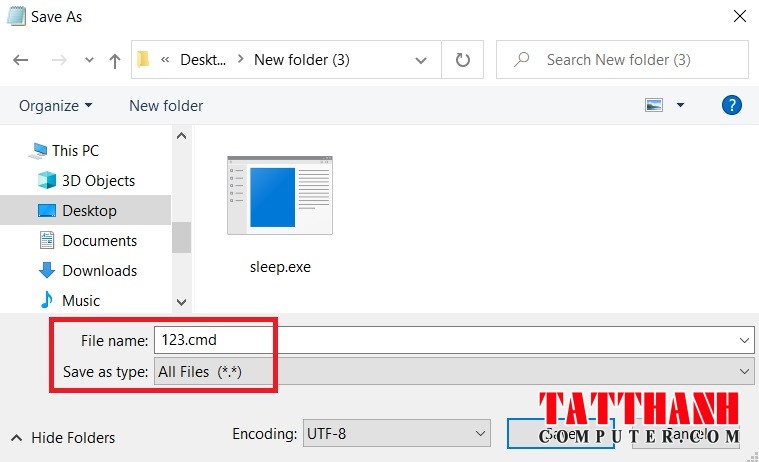
<p>Bước 9: Chọn<strong>&nbsp;File&gt;Save as</strong>. Sau đó ở ô&nbsp;<strong>File name</strong>, bạn đặt tên bất kỳ với đuôi là&nbsp;<strong>.cmd</strong>, ví dụ như 123.cmd. Còn ở ô&nbsp;<strong>Save as Typ</strong>e thì bạn chọn&nbsp;<strong>All files</strong>.&nbsp;</p>

<figure>
<div style="text-align:center"><img alt="dfdf" height="462" sizes="(max-width: 759px) 100vw, 759px" src="https://tatthanhcomputer.com/uploads/news/2021_03/777-9.jpg" srcset="https://news.gearvn.com/wp-content/uploads/2020/08/777-9.jpg 759w, https://news.gearvn.com/wp-content/uploads/2020/08/777-9-300x183.jpg 300w, https://news.gearvn.com/wp-content/uploads/2020/08/777-9-696x424.jpg 696w, https://news.gearvn.com/wp-content/uploads/2020/08/777-9-690x420.jpg 690w" width="759" /></div>
</figure>

<p><strong>Lưu ý: lưu file vào thư mục mà bạn bỏ file sleep.exe vào ở bước 6.</strong></p>

<p>Bước 10: Bây giờ, bạn cần kiếm một file âm thanh mà bạn muốn Windows sẽ dùng để báo hiệu mỗi khi mất kết nối. Bạn có thể chọn file âm thanh tùy thích, nhưng lưu ý phải là file mp3 nhé. Các bạn có thể tham khảo một số file âm thanh&nbsp;<a href="https://www.myinstants.com/search/?name=anime">TẠI ĐÂY</a>.</p>

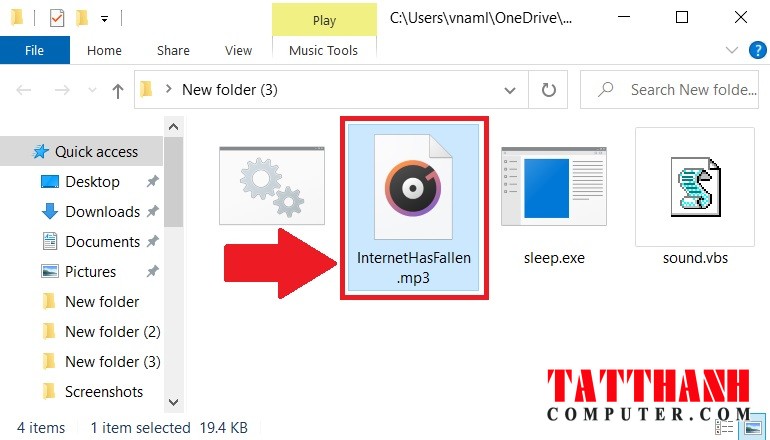
<p>Sau khi tải về thì bạn bỏ file âm thanh mp3 đó&nbsp;<strong>vào chung với thư mục</strong>&nbsp;bạn để file sleep.exe và file 123.cmd hay bất cứ tên file nào bạn đã đặt. Sau đó&nbsp;<strong>rename</strong>&nbsp;file âm thanh mp3 đó lại thành&nbsp;<strong>InternetHasFallen&nbsp;</strong>là xong.</p>

<figure>
<div style="text-align:center"><img alt="ssd" height="440" sizes="(max-width: 770px) 100vw, 770px" src="https://tatthanhcomputer.com/uploads/news/2021_03/888-8.jpg" srcset="https://news.gearvn.com/wp-content/uploads/2020/08/888-8.jpg 770w, https://news.gearvn.com/wp-content/uploads/2020/08/888-8-300x171.jpg 300w, https://news.gearvn.com/wp-content/uploads/2020/08/888-8-768x439.jpg 768w, https://news.gearvn.com/wp-content/uploads/2020/08/888-8-696x398.jpg 696w, https://news.gearvn.com/wp-content/uploads/2020/08/888-8-735x420.jpg 735w" width="770" /></div>
</figure>

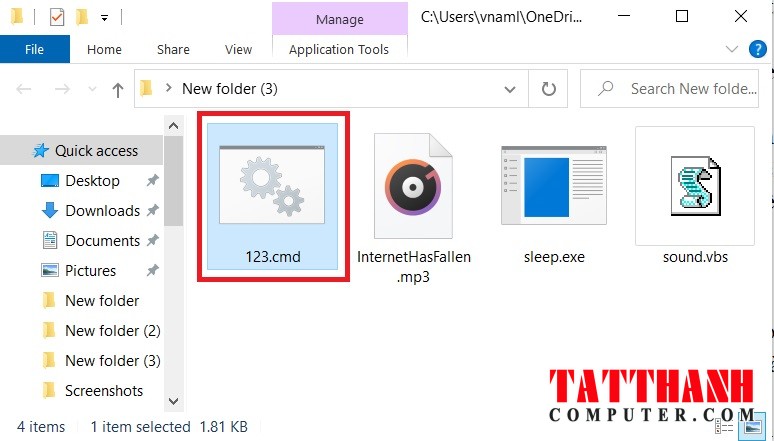
<p>Để kích hoạt, bạn mở file&nbsp;<strong>123.cmd&nbsp;</strong>hay bất kỳ tên file nào mà bạn đã đặt.&nbsp;</p>

<figure>
<div style="text-align:center"><img alt="dfdf" height="441" sizes="(max-width: 774px) 100vw, 774px" src="https://tatthanhcomputer.com/uploads/news/2021_03/999-6.jpg" srcset="https://news.gearvn.com/wp-content/uploads/2020/08/999-6.jpg 774w, https://news.gearvn.com/wp-content/uploads/2020/08/999-6-300x171.jpg 300w, https://news.gearvn.com/wp-content/uploads/2020/08/999-6-768x438.jpg 768w, https://news.gearvn.com/wp-content/uploads/2020/08/999-6-696x397.jpg 696w, https://news.gearvn.com/wp-content/uploads/2020/08/999-6-737x420.jpg 737w" width="774" /></div>
</figure>

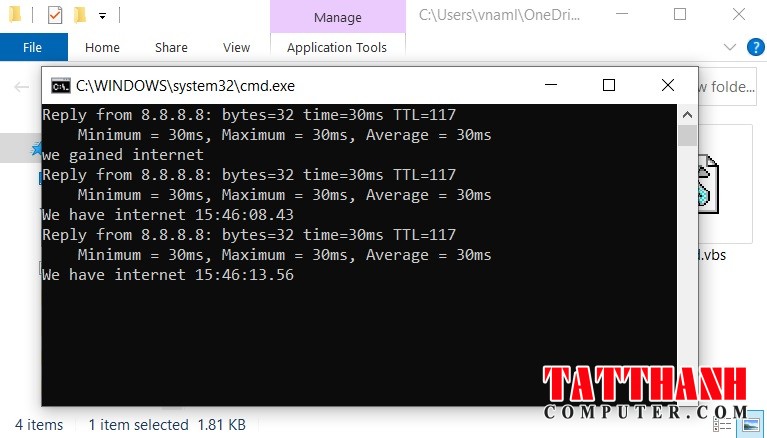
<p>Một cửa sổ cmd sẽ hiện ra và bạn cứ để cho nó chạy, mỗi khi bị mất kết nối mạng, bạn sẽ nghe âm thanh thông báo phát lên.</p>

<figure>
<div style="text-align:center"><img alt="đfdf" height="438" sizes="(max-width: 767px) 100vw, 767px" src="https://tatthanhcomputer.com/uploads/news/2021_03/aaa-3.jpg" srcset="https://news.gearvn.com/wp-content/uploads/2020/08/aaa-3.jpg 767w, https://news.gearvn.com/wp-content/uploads/2020/08/aaa-3-300x171.jpg 300w, https://news.gearvn.com/wp-content/uploads/2020/08/aaa-3-696x397.jpg 696w, https://news.gearvn.com/wp-content/uploads/2020/08/aaa-3-735x420.jpg 735w" width="767" /></div>
</figure>

<p><strong><em>Vậy là xong, cảm ơn các bạn đã quan tâm theo dõi!</em></strong></p>
		</div>
	</div>
	<div id="footer" class="clearfix">
		<div id="url">
			<strong>URL của bản tin này: </strong><a href="https://tatthanhcomputer.com/news/thu-thuat/huong-dan-tao-bao-dong-moi-khi-mat-ket-noi-internet-tren-windows-10-51.html" title="Hướng dẫn tạo báo động mỗi khi mất kết nối Internet trên Windows 10">https://tatthanhcomputer.com/news/thu-thuat/huong-dan-tao-bao-dong-moi-khi-mat-ket-noi-internet-tren-windows-10-51.html</a>

		</div>
		<div class="clear"></div>
		<div class="copyright">
			&copy; TẤT THÀNH COMPUTER - MÁY TÍNH - HIEND COMPUTER - GAMING GEAR - LẶP ĐẶT CAMERA - MÁY TÍNH KIẾN ĐỨC LÂM ĐỒNG - PC ĐĂK NÔNG -SỮA MÁY TÍNH
		</div>
		<div id="contact">
			<a href="mailto:tatthanhcomputer@gmail.com">tatthanhcomputer@gmail.com</a>
		</div>
	</div>
</div>
        <div id="timeoutsess" class="chromeframe">
            Bạn đã không sử dụng Site, <a onclick="timeoutsesscancel();" href="https://tatthanhcomputer.com/#">Bấm vào đây để duy trì trạng thái đăng nhập</a>. Thời gian chờ: <span id="secField"> 60 </span> giây
        </div>
        <div id="openidResult" class="nv-alert" style="display:none"></div>
        <div id="openidBt" data-result="" data-redirect=""></div>
<script src="https://tatthanhcomputer.com/assets/js/jquery/jquery.min.js"></script>
<script>var nv_base_siteurl="/",nv_lang_data="vi",nv_lang_interface="vi",nv_name_variable="nv",nv_fc_variable="op",nv_lang_variable="language",nv_module_name="news",nv_func_name="savefile",nv_is_user=0, nv_my_ofs=-4,nv_my_abbr="EDT",nv_cookie_prefix="nv4c_r9Q7G",nv_check_pass_mstime=1738000,nv_area_admin=0,nv_safemode=0,theme_responsive=1,nv_is_recaptcha=0;</script>
<script src="https://tatthanhcomputer.com/assets/js/language/vi.js"></script>
<script src="https://tatthanhcomputer.com/assets/js/global.js"></script>
<script src="https://tatthanhcomputer.com/themes/memory/js/news.js"></script>
<script src="https://tatthanhcomputer.com/themes/memory/js/main.js"></script>
<script src="https://tatthanhcomputer.com/themes/memory/js/jquery-migrate-3.0.1.js"></script>
<script src="https://tatthanhcomputer.com/themes/memory/js/double_tab_togo.js"></script>
<script src="https://tatthanhcomputer.com/themes/memory/js/owl.carousel.min.js"></script>
<script src="https://tatthanhcomputer.com/themes/memory/js/appear.js"></script>
<script src="https://tatthanhcomputer.com/themes/memory/js/script.js"></script>
<script src="https://tatthanhcomputer.com/themes/memory/js/bootstrap.min.js"></script>
</body>
</html>